Cloud Firestore is a NoSQL, document-oriented database.
On this page
Introduction
Cloud Firestore is a flexible, scalable NoSQL cloud database, built on Google Cloud infrastructure, to store and sync data for client- and server-side development.
Go to the Firebase console and create a project.
Data model
The Cloud Firestore data model supports whatever data structure works best for our app: unlike a SQL database, there are no tables or rows.
Instead, you store data in documents, which are organized into collections.
Each document contains a set of key-value pairs. Cloud Firestore is optimized for storing large collections of small documents.
All documents must be stored in collections. Documents can contain subcollections and nested objects, both of which can include primitive fields like strings or complex objects like lists.
Collections and documents are created implicitly in Cloud Firestore. Simply assign data to a document within a collection. If either the collection or document does not exist, Cloud Firestore creates it.
Documents
In Firestore, the unit of storage is the document. A document is a lightweight record that contains fields, which map to values. Each document is identified by a name.
A document representing a user alovelace might look like this:
📄 alovelace first : "Ada" last : "Lovelace" born : 1815Firestore supports a variety of data types for values: boolean, number, string, geo point, binary blob, and timestamp. You can also use arrays or nested objects, called maps, to structure data within a document.
Complex, nested objects in a document are called maps.
For example, you could structure the user’s name from the example above with a map, like this:
📄 alovelace name : first : "Ada" last : "Lovelace" born : 1815You may notice that documents look a lot like JSON:
{ "name": { "first": "Ada", "last": "Lovelace" }, "born": 1815}In fact, they basically are. There are some differences (for example, documents support extra data types and are limited to the document size limit), but in general, you can treat documents as lightweight JSON records.
Collections
Documents live in collections, which are simply containers for documents.
For example, you could have a users collection to contain your various users, each represented by a document:
📁 users 📄 alovelace first : "Ada" last : "Lovelace" born : 1815 📄 aturing first : "Alan" last : "Turing" born : 1912Cloud Firestore is schemaless, so you have complete freedom over what fields you put in each document and what data types you store in those fields. Documents within the same collection can all contain different fields or store different types of data in those fields. However, it’s a good idea to use the same fields and data types across multiple documents, so that you can query the documents more easily.
A collection contains documents and nothing else. It can’t directly contain raw fields with values, and it can’t contain other collections. (See Hierarchical Data for an explanation of how to structure more complex data in Cloud Firestore.)
The names of documents within a collection are unique. You can provide your own keys, such as user IDs, or you can let Cloud Firestore create random IDs for you automatically.
You do not need to “create” or “delete” collections. After you create the first document in a collection, the collection exists. If you delete all of the documents in a collection, it no longer exists.
References
Every document in Firestore is uniquely identified by its location within the database.
The previous example showed a document alovelace within the collection users. To refer to this location in your code, you can create a reference to it.
Add the Firebase dependency in deno.json:
deno install --allow-scripts --node-modules-dir npm:firebaseEdit main.ts:
import { initializeApp } from 'firebase/app';import { getFirestore, collection, doc } from 'firebase/firestore';
const config = {  apiKey: "AIzaSyCM61mMr_iZnP1DzjT1PMB5vDGxfyWNM64",  authDomain: "firestore-snippets.firebaseapp.com",  projectId: "firestore-snippets"};const app = initializeApp(config);const db = getFirestore(app);
You can create references to collections:
const collectionRef = collection(db, 'users');console.log(collectionRef)Run the script:
deno run --allow-net --allow-env main.tsA reference is a lightweight object that just points to a location in your database.
You can create a reference whether or not data exists there, and creating a reference does not perform any network operations:
const docRef = doc(collectionRef, 'alovelace');console.log(docRef)Collection references and document references are two distinct types of references and let you perform different operations. For example, you could use a collection reference for querying the documents in the collection, and you could use a document reference to read or write an individual document.
For convenience, you can also create references by specifying the path to a document or collection as a string, with path components separated by a forward slash (/).
For example, to create a reference to the alovelace document:
const docRef = doc(db, 'users/alovelace');Hierarchical Data
To understand how hierarchical data structures work in Firestore, consider an example chat app with messages and chat rooms.
You can create a collection called rooms to store different chat rooms:
📁 rooms 📄 roomA name : "my chat room" 📄 roomB ...Now that you have chat rooms, decide how to store your messages. You might not want to store them in the chat room’s document. Documents in Firestore should be lightweight, and a chat room could contain a large number of messages.
However, you can create additional collections within your chat room’s document, as subcollections.
Subcollections
The best way to store messages in this scenario is by using subcollections. A subcollection is a collection associated with a specific document.
You can create a subcollection called messages for every room document in your rooms collection:
📁 rooms 📄 roomA name : "my chat room" 📁 messages 📄 message1 from : "alex" msg : "Hello World!" 📄 message2 📄 roomB ...In this example, you would create a reference to a message in the subcollection with the following code:
const messageRef = doc(db, "rooms", "roomA", "messages", "message1");Notice the alternating pattern of collections and documents. Your collections and documents must always follow this pattern. You cannot reference a collection in a collection or a document in a document.
Subcollections allow you to structure data hierarchically, making data easier to access. To get all messages in roomA, you can create a collection reference to the subcollection messages and interact with it like you would any other collection reference.
Documents in subcollections can contain subcollections as well, allowing you to further nest data. You can nest data up to 100 levels deep.
Warning: Deleting a document does not delete its subcollections! When you delete a document that has subcollections, those subcollections are not deleted. For example, there may be a document located at
coll/doc/subcoll/subdoceven though the documentcoll/docno longer exists. If you want to delete documents in subcollections when deleting a parent document, you must do so manually, as shown in Delete Collections.
Data Types
Manage Data
Configuration
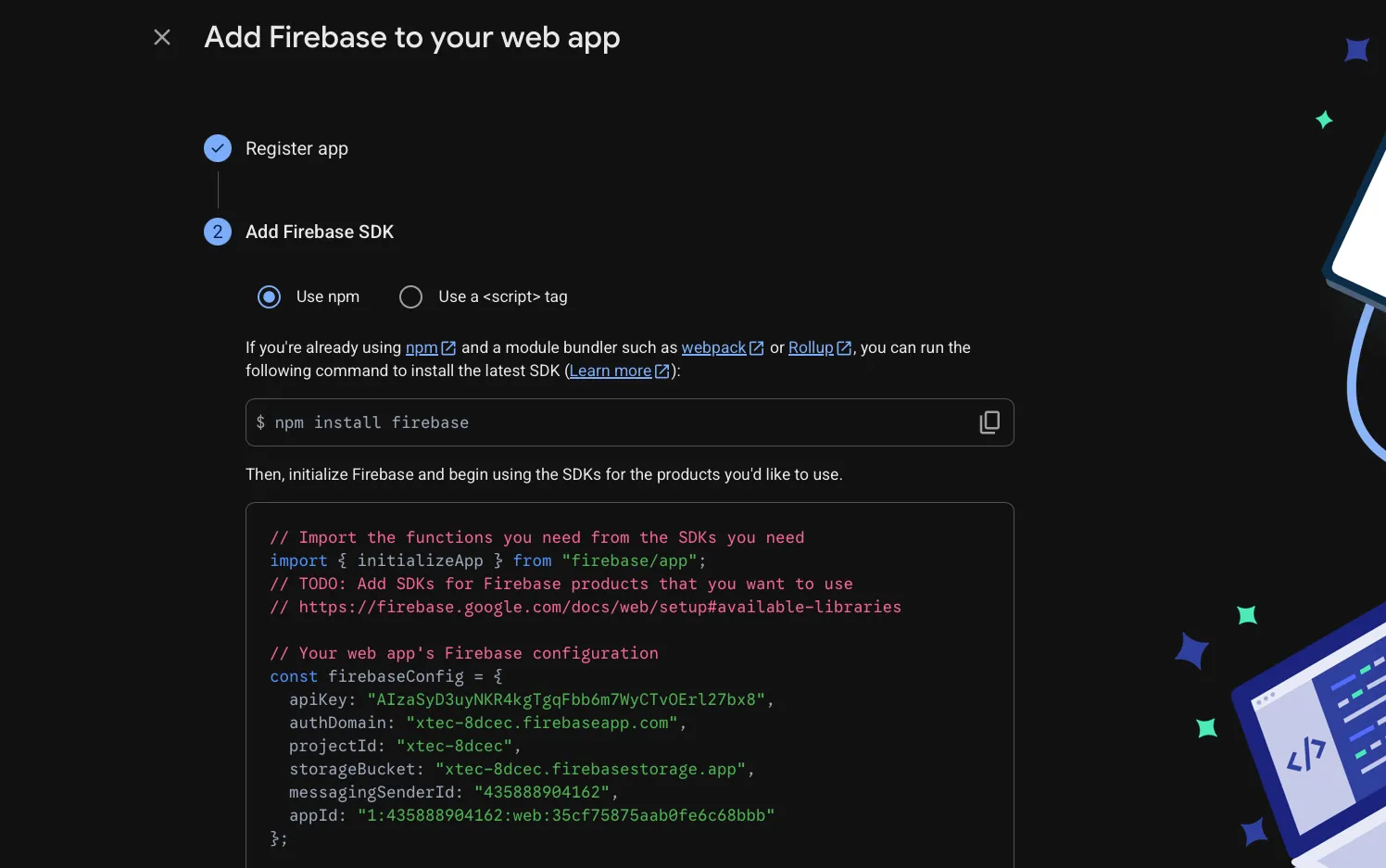
Replace FIREBASE_CONFIGURATION with your web app’s firebaseConfig.
const firebaseConfig = { FIREBASE_CONFIGURATION};You can download the Firebase config file or Firebase config object for each of your project’s apps from the Firebase console’s Project settings page.
You need to update the Firestore security rules in the Firebase Console for project:
Firebase Console → Firestore Database → Rules
Change the rules to:
rules_version = '2';service cloud.firestore { match /databases/{database}/documents { match /{document=**} { allow read, write: if true; } }}Add data
To persist data when the device loses its connection, see the Enable Offline Data documentation.
Set a document
To create or overwrite a single document, use the following language-specific set() methods:
import { doc, setDoc } from "firebase/firestore";
// Add a new document in collection "cities"await setDoc(doc(db, "cities", "LA"), {  name: "Los Angeles",  state: "CA",  country: "USA"});
If the document does not exist, it will be created.
If the document does exist, its contents will be overwritten with the newly provided data, unless you specify that the data should be merged into the existing document, as follows:
import { doc, setDoc } from "firebase/firestore";
const cityRef = doc(db, 'cities', 'BJ');setDoc(cityRef, { capital: true }, { merge: true });
If you’re not sure whether the document exists, pass the option to merge the new data with any existing document to avoid overwriting entire documents.
For documents that contain maps, if you specify a set with a field that contains an empty map, the map field of the target document is overwritten.
Data types
Cloud Firestore lets you write a variety of data types inside a document, including strings, booleans, numbers, dates, null, and nested arrays and objects. Cloud Firestore always stores numbers as doubles, regardless of what type of number you use in your code.
Query Data
Delete Data
Export and import data
Writing Data
Add a document (auto-generated ID)
Use addDoc to insert a new document and let Firestore assign an ID automatically.
import { collection, addDoc } from "firebase/firestore";import { db } from "./firebase";
const docRef = await addDoc(collection(db, "users"), {  name: "Alice",  age: 30,  email: "alice@example.com",});
console.log("Document written with ID:", docRef.id);
Set a document (custom ID)
Use setDoc when you want to choose the document ID yourself.
import { doc, setDoc } from "firebase/firestore";import { db } from "./firebase";
await setDoc(doc(db, "users", "uid_abc123"), { name: "Alice", age: 30, email: "alice@example.com",});Calling setDoc replaces the entire document. To only update specific fields without erasing the rest, use updateDoc or pass { merge: true } as a third argument to setDoc.
Update specific fields
updateDoc only modifies the fields you specify — all other fields remain untouched.
import { doc, updateDoc } from "firebase/firestore";import { db } from "./firebase";
await updateDoc(doc(db, "users", "uid_abc123"), {  age: 31,});
Delete a document
import { doc, deleteDoc } from "firebase/firestore";import { db } from "./firebase";
await deleteDoc(doc(db, "users", "uid_abc123"));Create a products collection and add a document with the following fields:
name— a product name of your choiceprice— a numberinStock— a boolean
Log the auto-generated document ID to the console.
import { collection, addDoc } from "firebase/firestore";import { db } from "./firebase";
const docRef = await addDoc(collection(db, "products"), {  name: "Mechanical Keyboard",  price: 129.99,  inStock: true,});
console.log("New product ID:", docRef.id);
Reading Data
Read a single document
import { doc, getDoc } from "firebase/firestore";import { db } from "./firebase";
const docRef = doc(db, "users", "uid_abc123");const docSnap = await getDoc(docRef);
if (docSnap.exists()) {  console.log("User data:", docSnap.data());} else {  console.log("No such document!");}
Always check
docSnap.exists()before calling.data(). If the document does not exist,.data()returnsundefinedand your app will silently break.
Read all documents in a collection
import { collection, getDocs } from "firebase/firestore";import { db } from "./firebase";
const querySnapshot = await getDocs(collection(db, "users"));
querySnapshot.forEach((doc) => {  console.log(doc.id, "→", doc.data());});
Filter and sort with queries
Use query, where, and orderBy to narrow down results.
import { collection, query, where, orderBy, getDocs } from "firebase/firestore";import { db } from "./firebase";
// Get users older than 25, sorted by age then nameconst q = query(  collection(db, "users"),  where("age", ">", 25),  orderBy("age"),  orderBy("name"));
const querySnapshot = await getDocs(q);querySnapshot.forEach((doc) => { console.log(doc.id, doc.data());});When you combine where and orderBy on different fields, Firestore may ask you to create a composite index. The error message in the console will include a direct link to create it automatically.
Fetch all documents from the products collection where price is less than 50, and print the name and price of each result to the console.
import { collection, query, where, getDocs } from "firebase/firestore";import { db } from "./firebase";
const q = query(  collection(db, "products"),  where("price", "<", 50));
const snapshot = await getDocs(q);snapshot.forEach((doc) => {  const { name, price } = doc.data();  console.log(`${name}: $${price}`);});
Real-time Listeners
Instead of fetching data once, onSnapshot subscribes to changes and calls your callback every time the data updates — instantly, without polling.
Listen to a single document
import { doc, onSnapshot } from "firebase/firestore";import { db } from "./firebase";
const unsub = onSnapshot(doc(db, "users", "uid_abc123"), (docSnap) => {  if (docSnap.exists()) {    console.log("Current data:", docSnap.data());  }});
// Later — stop listening (e.g. when the component unmounts)unsub();
Listen to a collection query
import { collection, query, where, onSnapshot } from "firebase/firestore";import { db } from "./firebase";
const q = query(collection(db, "users"), where("age", ">", 25));
const unsub = onSnapshot(q, (snapshot) => {  snapshot.docChanges().forEach((change) => {    if (change.type === "added")    console.log("Added:",    change.doc.data());    if (change.type === "modified") console.log("Modified:", change.doc.data());    if (change.type === "removed")  console.log("Removed:",  change.doc.data());  });});
// Stop listening when doneunsub();onSnapshot keeps an open WebSocket connection. If you don’t call the returned unsub() function when the listener is no longer needed (e.g., component unmount, user logout), you will leak memory and continue to receive unwanted updates. In React, call unsub() inside a useEffect cleanup function.
useEffect(() => { const unsub = onSnapshot(doc(db, "users", uid), (snap) => { setUser(snap.data()); }); return () => unsub(); // cleanup on unmount}, [uid]);Add a visits field (number) to a document and build a listener that logs the current visits value every time it changes. Then manually update the field in the Firebase console and observe the log output.
import { doc, onSnapshot, updateDoc } from "firebase/firestore";import { db } from "./firebase";
// 1. Listen for changesconst unsub = onSnapshot(doc(db, "counters", "homepage"), (snap) => {  if (snap.exists()) {    console.log("Visits:", snap.data().visits);  }});
// 2. Simulate a visit increment (or do it in the Firebase console)await updateDoc(doc(db, "counters", "homepage"), {  visits: 42,});
// 3. Stop when doneunsub();
Subcollections
A document can contain its own collection, called a subcollection. This is useful for modeling one-to-many relationships (e.g., a user’s posts, a chat room’s messages).
users/└── uid_abc123/ ├── name: "Alice" └── posts/ ← subcollection ├── post_1/ │ └── title: "Hello World" └── post_2/ └── title: "My second post"Write to a subcollection
import { collection, addDoc } from "firebase/firestore";import { db } from "./firebase";
// Path: users/{userId}/postsawait addDoc(collection(db, "users", "uid_abc123", "posts"), {  title: "Hello World",  createdAt: new Date(),});
Read from a subcollection
import { collection, getDocs } from "firebase/firestore";import { db } from "./firebase";
const postsSnap = await getDocs(  collection(db, "users", "uid_abc123", "posts"));
postsSnap.forEach((doc) => { console.log(doc.id, doc.data());});Deleting a document does not delete its subcollections. You must delete subcollection documents separately, or use a Cloud Function to do it recursively.
Security Rules
By default Firestore blocks all reads and writes. Security rules let you control who can access what — they run on Google’s servers and cannot be bypassed by client code.
Rules are defined in the Firestore → Rules tab of the Firebase console, or in firestore.rules in your project.
Block everything (default / lockdown)
rules_version = '2';service cloud.firestore { match /databases/{database}/documents { match /{document=**} { allow read, write: if false; } }}Allow only authenticated users
rules_version = '2';service cloud.firestore { match /databases/{database}/documents { match /{document=**} { allow read, write: if request.auth != null; } }}Allow users to read/write only their own data
rules_version = '2';service cloud.firestore { match /databases/{database}/documents { match /users/{userId} { allow read, write: if request.auth != null && request.auth.uid == userId; } }}The rule allow read, write: if true; lets anyone read or delete all your data without authentication. Only use it for quick local tests and always replace it before deploying.
Final Challenge
Implement a simple guestbook using everything you learned:
- Create a
guestbookcollection. - Write a function
addEntry(name, message)that adds a document withname,message, and acreatedAttimestamp. - Write a function
listenToEntries(callback)that subscribes to theguestbookcollection ordered bycreatedAtascending and callscallbackwith the array of entries on every change. - Make sure to return the unsubscribe function from
listenToEntries.
import {  collection,  addDoc,  query,  orderBy,  onSnapshot,  serverTimestamp,} from "firebase/firestore";import { db } from "./firebase";
// Add a new guestbook entryexport async function addEntry(name, message) {  await addDoc(collection(db, "guestbook"), {    name,    message,    createdAt: serverTimestamp(), // server-side timestamp, not the client clock  });}
// Subscribe to all entries in chronological orderexport function listenToEntries(callback) {  const q = query(    collection(db, "guestbook"),    orderBy("createdAt", "asc")  );
  const unsub = onSnapshot(q, (snapshot) => {    const entries = snapshot.docs.map((doc) => ({      id: doc.id,      ...doc.data(),    }));    callback(entries);  });
  return unsub; // caller is responsible for calling unsub()}
Exercises
classDiagram
    class Shipment {
        id: number
        departureDate: string
        arrivalDate: string
        originPort: string
        destinationPort: string
    }

    Shipment --o "1..*" Container

    class Container {
        id: number
        weight: number
    }

    Container --o  "1..*" Item

    class Item {
        sku: string
        description: string
        quantity: number
        unitWeight: number
    }